How to Quickly Fix a Mobile Hotspot Problem on Android
Published: 21 Jun 2025
It’s so frustrating when your phone’s hotspot stops working, especially when you need it most. If your Mobile Hotspot on Android won’t connect or keeps dropping, you’re in the right place. This quick guide will help you solve the issue step by step. But before we fix it, let’s understand how a mobile hotspot works.
What Is a Mobile Hotspot and How It Works
A mobile hotspot lets your phone share its internet with other devices. It works like a small Wi-Fi router. When you turn on the hotspot, your phone uses mobile data to create a wireless signal. Other devices like laptops, tablets, or even other phones can connect to it.
This helps when there’s no Wi-Fi around. You just use your phone’s internet and stay connected anywhere, anytime. To use it, go to your Android phone’s settings, tap on “Hotspot & Tethering,” and turn it on. It only takes a few seconds to start sharing your internet.
Common Reasons Why a Mobile Hotspot on Android Stops Working
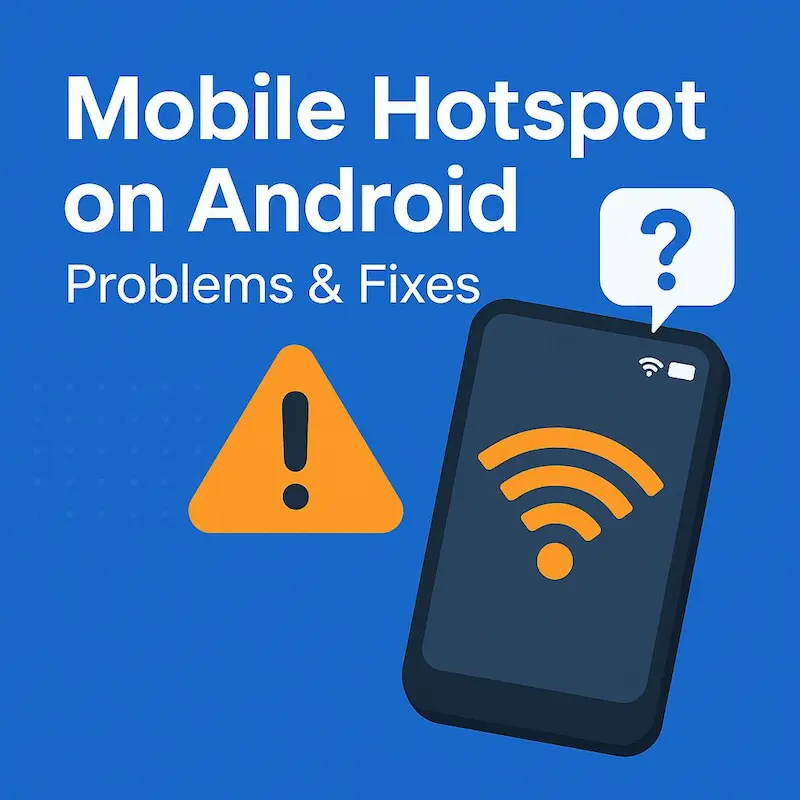
When your Android hotspot isn’t working, the cause is usually simple. Let’s explore the common problems and how you can fix them in just a few steps.
Mobile Data Is Turned Off or Weak
Your hotspot won’t work without mobile data. First, check if mobile data is turned on. If it’s on but the signal is weak, the internet won’t share properly. Move to a spot with better signal strength.
Sometimes, turning Airplane Mode on and off resets the network. Try that too—it’s quick and easy.
Hotspot Limit Reached or Disabled by Carrier
Some mobile plans block hotspot sharing or set a data limit. If you’re out of data, your hotspot might stop. We suggest checking with your carrier. Ask if hotspot use is allowed on your current plan.
Also, keep an eye on your data usage in settings. You might be using more than you think.
Battery Saver or Power Mode Is On
When your phone enters battery saver mode, it may turn off hotspot features to save energy. Go to settings and turn off battery saver. That often brings the hotspot back to life.
If your phone is running low, charge it before turning on the hotspot again.
Incorrect Hotspot Settings
Wrong settings can stop your hotspot from working. Maybe the password isn’t right, or it’s too hard to type. Go to hotspot settings. Check the name, password, and security type. Use a simple password for testing.
Also, make sure the hotspot is set to “visible” or “discoverable.” That helps other devices find it easily.
Connected Devices Are Maxed Out
Android limits how many devices can use the hotspot at once. Usually, the limit is 5 to 10 devices. If too many people are connected, the hotspot won’t allow more. You can check the connected devices in settings.
Remove unused devices and reconnect your own. That may solve the problem fast.
System Glitch or Software Bug
Sometimes, your phone just needs a restart. Glitches happen, and a simple reboot often clears them. If a restart doesn’t help, check for software updates. A bug fix may already be available.
You can also try turning off the hotspot, waiting a few seconds, and then turning it back on.
Bluetooth or VPN Interference
Other settings, like Bluetooth or VPN, may block your hotspot. Have you turned those off? Try disabling Bluetooth and VPN, then test your hotspot again. This trick works for many users.
Also, make sure your phone isn’t connected to another network that could cause conflicts.
Conclusion
We covered what a mobile hotspot is, how it works, and the most common reasons it might stop. If your Mobile Hotspot on Android isn’t working, these tips will guide you step by step to fix it. Even small things like power mode or Bluetooth can cause big issues.
I suggest restarting your device; it often works like magic. If this helped, browse more quick fixes and guides on our site. Don’t stop here, explore and learn something new every day.
FAQs
A mobile hotspot lets your Android phone share its mobile data as Wi-Fi. You can connect other devices, like a laptop or tablet, to use that internet.
Go to “Settings,” then tap “Hotspot & Tethering.” From there, turn on the mobile hotspot and set your password if needed.
Most Android phones allow up to 5–10 devices at once. If that limit is reached, new devices won’t be able to connect.
It might be due to a system setting, battery saver, or inactivity timeout. You can change these options in your phone’s hotspot settings.
Yes! Restarting your phone can fix many small bugs or glitches that affect hotspot functions. It’s a simple first step to try.



- Be Respectful
- Stay Relevant
- Stay Positive
- True Feedback
- Encourage Discussion
- Avoid Spamming
- No Fake News
- Don't Copy-Paste
- No Personal Attacks
- Be Respectful
- Stay Relevant
- Stay Positive
- True Feedback
- Encourage Discussion
- Avoid Spamming
- No Fake News
- Don't Copy-Paste
- No Personal Attacks
