Best Way to Clear Cache in Mobile Phone Without Risk
Published: 12 Jun 2025
Your phone worked great when it was new, right? But now it’s slow, and apps take forever to open. That’s because your cache is full of junk data. It happens to all phones over time. I’m here to show you how to clear the cache on your mobile phone in a few easy steps. Let’s clean it up and make your phone run like new.
What is the cache in a mobile phone?
The cache is a small storage space in your phone where apps save temporary data. It helps apps load faster by remembering things you’ve done before. But over time, too much cache can slow down your phone instead of helping it.
How to Clear Cache on Any Mobile Phone
If your phone feels slow or unresponsive, clearing the cache can help. Below are simple steps you can follow to fix the issue on any mobile device.

Unlock Your Phone
Start by unlocking your phone. Sounds obvious, right? But sometimes we forget the basics. You can’t access anything unless your screen is open with the mobile lock. Use your PIN, fingerprint, or swipe — whatever works for your device.
Open the Settings App
Next, find and tap the Settings app on your phone. It usually looks like a gear icon. If you’re not sure where it is, try searching “Settings” using your app search bar. This is where all the main controls are.
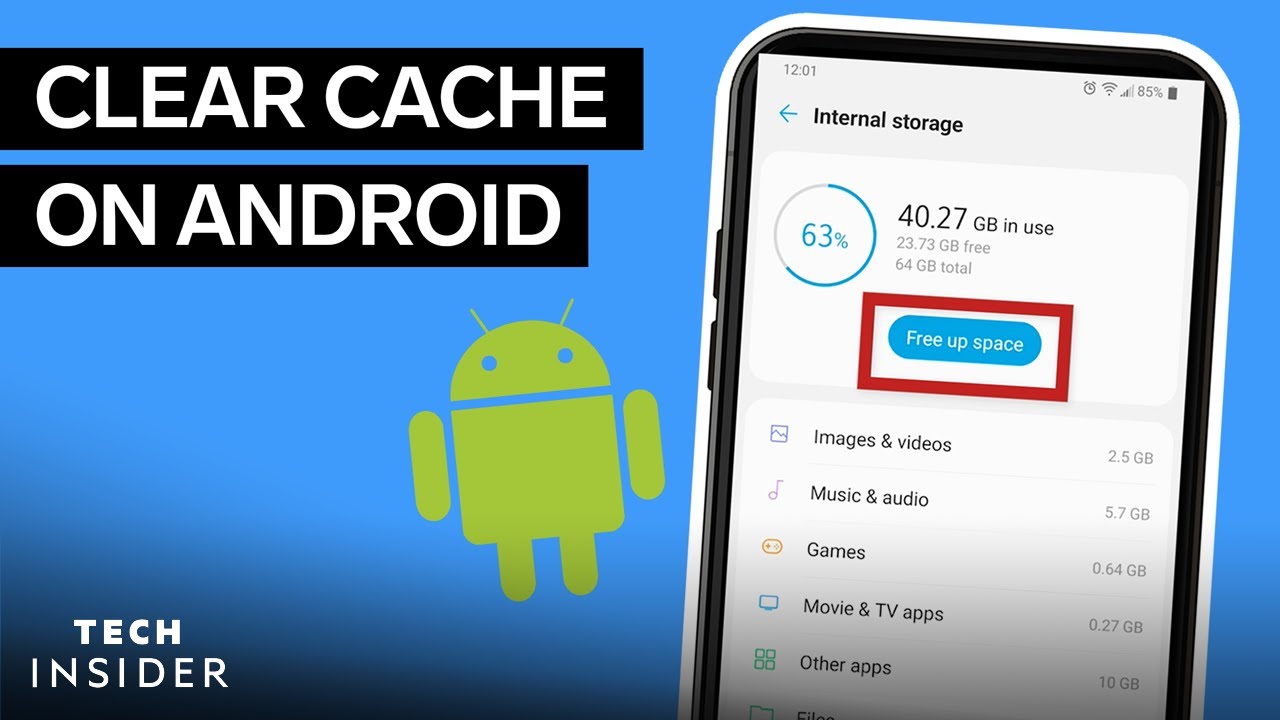
Go to Storage
In the Settings menu, scroll down and tap Storage. This is where your phone shows what’s using space. You’ll see options like apps, images, videos, and cached data. Don’t worry — we’ll only clear what’s safe.
Tap Cached Data
Now, look for Cached Data or something similar. On some phones, it might say “Other” or “Temporary Files.” Tap it, and your phone will show how much space the cache is using. You’ll be surprised how much junk there is.
Clear App Cache
Want to clean up app junk? Go to Apps in Settings, tap any app, then choose Storage > Clear Cache. You can do this for apps like YouTube, Facebook, or WhatsApp. It won’t delete your data — just the stored clutter.
Clear System Cache
Not all phones let you do this easily, but if yours does, it’s helpful. Search for Device Care or Storage Cleaner in Settings. Some phones show a clear system cache option here. Just tap and confirm.
Restart Your Phone
After clearing the cache, restart your phone. It helps your phone apply changes and free up memory. Just hold the power button and choose Restart. It takes a minute, but it helps a lot.
Check Phone Speed
Now test your phone. Open apps, scroll through your home screen, and check if things feel faster. You’ll likely notice smoother movement and quicker loading. If not, don’t worry — we’re not done yet.
Repeat If Needed
Still feeling some lag? You can repeat these steps after a few days. Some apps build a cache fast, especially games or social media. Clearing them weekly can keep your phone fast.
Use the Cleaning App
Want an easier way? Try using a trusted cleaning app like CCleaner or Files by Google. These apps find and remove junk with one tap. Just don’t overuse them — once a week is enough.
Conclusion
We’ve just learned how to clear the cache on a mobile phone in simple steps that anyone can follow. It takes just a few taps but can make a huge difference. I recommend trying this out once a week to keep your device working its best.
Looking for more? We’ve got easy solutions for common phone issues in our latest posts — go check them out!
Stay smart with your tech — because even small fixes make a big impact.
FAQs
Yes, it’s completely safe. It only deletes junk files, not your photos or app settings. Your apps may take a second longer to load the first time after clearing.
Yes, it helps a lot. Removing old cache frees up space and reduces lag. Your phone will feel smoother and faster.
No, you don’t. Most phones let you clear the cache in settings without any app. But some cleaner apps can make it quicker if you prefer.






- Be Respectful
- Stay Relevant
- Stay Positive
- True Feedback
- Encourage Discussion
- Avoid Spamming
- No Fake News
- Don't Copy-Paste
- No Personal Attacks
- Be Respectful
- Stay Relevant
- Stay Positive
- True Feedback
- Encourage Discussion
- Avoid Spamming
- No Fake News
- Don't Copy-Paste
- No Personal Attacks
